How to Save Snaps Without Notification or Detection
We have all been there. A friend sends you a hilarious photo, or maybe a cute video you want to keep as a memory. You instinctively reach for the screenshot buttons but then you stop. You remember the golden rule of Snapchat: If you save it, they will know. Snapchat is famous for its “tattletale” notifications.
Whether you take a screenshot or use screen recording, the app instantly alerts the sender with a bold message: “User took a screenshot!” It can be awkward, embarrassing, and sometimes, you just want to save a memory without having to explain yourself. So, is it possible to save snaps without getting caught? Yes. In this guide, we will break down the most popular methods to save snaps secretly in 2026, ranging from simple “low-tech” tricks to advanced tools like Snaptroid that make it effortless.

Method 1: The “Low-Tech” Solution (Another Device)
If you want a method that is 100% guaranteed to work without any technical skills, this is it. It’s not fancy, but it gets the job done.
How to do it:
- Grab a second phone or tablet (maybe an old device or a friend’s phone).
- Open the Snap you want to save on your main phone.
- Use the camera on the second device to take a picture or record a video of your screen.
The Good:
- Completely Undetectable: Snapchat cannot detect cameras in the real world.
- Zero Risk: There is no chance of your account getting banned.
The Bad:
- Inconvenient: You need to have a second device ready exactly when you open the snap.
- Low Quality: You are taking a picture of a screen, so you will get glare, reflections, and blurry pixels.
Method 2: The “Airplane Mode” Trick (High Risk)
This used to be the most popular trick in the book. The idea is to load the snap, cut your internet connection so the app can’t send the “Viewed” notification, and then clear your tracks.
Warning: In 2026, Snapchat has gotten smarter. This method is now considered risky and unreliable. If you don’t do it perfectly, the notification will be sent the moment you reconnect to wifi.
How to do it (at your own risk):
- Open Snapchat and let the snap load (it will say “New Snap”), but do not open it yet.
- Turn on Airplane Mode: Completely disconnect from Wi-Fi and mobile data.
- View and Screenshot: Open the snap and take your screenshot.
- Clear Cache: This is the critical step. Before turning the internet back on, go to your phone settings, find Snapchat, and “Clear Cache” and “Clear Data” (or uninstall the app entirely on iPhone).
- Reconnect: Turn off Airplane mode and log back in.
The Downside: It is a lot of work for a single picture. Plus, if the app saves the “screenshot event” in a hidden file, it will sync with the server as soon as you log back in, sending the notification late.
Method 3: Screen Mirroring to PC
If you are tech-savvy, you can use your computer to record your phone screen. Since the recording software is running on your PC, not your phone, Snapchat usually doesn’t detect it.
How to do it:
- Download a screen mirroring app (like ApowerMirror or LetsView) on both your phone and PC.
- Connect both devices to the same Wi-Fi network.
- Start mirroring your phone screen to your monitor.
- Use a PC screen recorder (like OBS or Bandicam) to record your monitor while you view the snaps.
The Downside: This requires significant setup. You can’t do this quickly while you are out with friends or lying in bed. It’s strictly a “at-home” solution.
Method 4: The Best Solution – Using Snaptroid
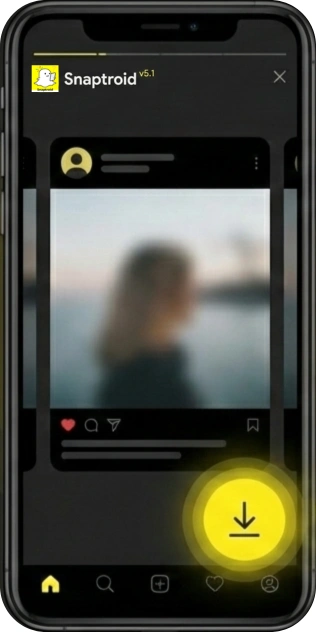
If you are tired of risky hacks or setting up complicated software, the easiest solution is to use a tool built for this exact purpose. Snaptroid v5.1 is designed to give you a dedicated “Save” button right inside the chat.
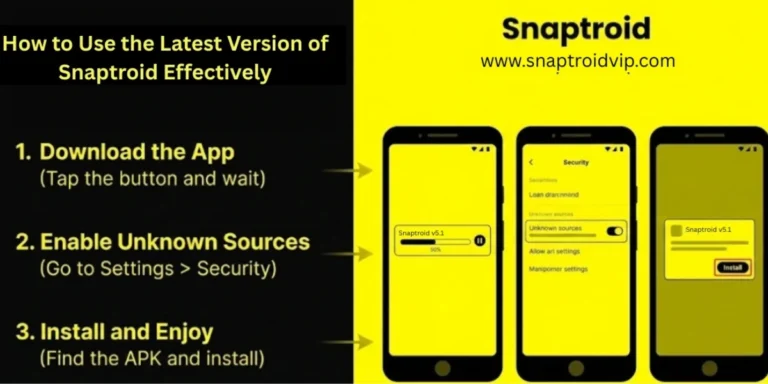
How it works: Unlike the official app, Snaptroid blocks the signal that tells the server “User took a screenshot.” It adds a simple Download Button to the interface. If you’re curious to learn more about how to use the app read the user guide How to use latest version of Snaptroid.
Steps to Save Secretly:
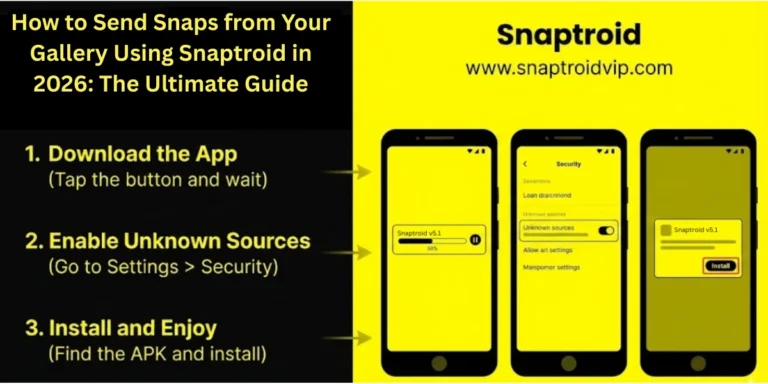
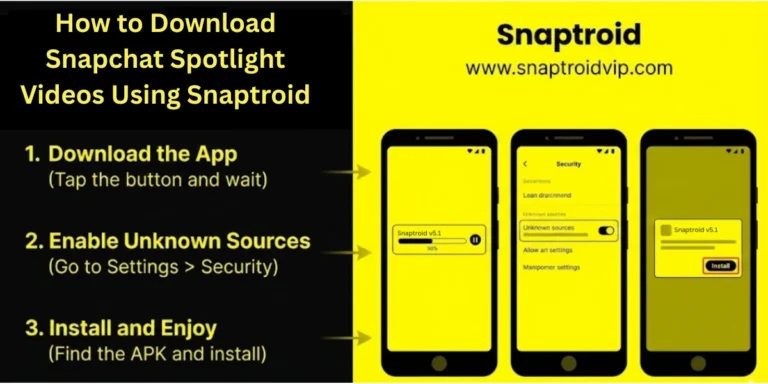
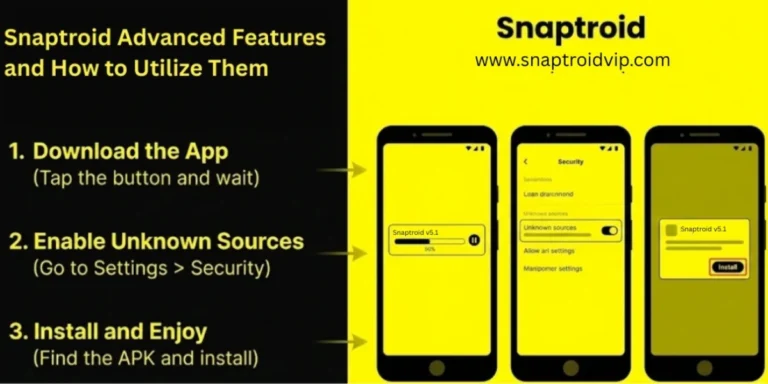
- Install Snaptroid: Download the app from our official page.
- Open the Snap: Tap on the photo or video you want to keep.
- Click Save: Tap the download icon in the corner.
- Done: The file is saved directly to your phone’s gallery (or the secret Vault) without sending any notification to the sender.
Why this is better:
- High Quality: You get the original file, not a blurry recording or screen capture.
- Stealth: It is 100% notification-free because the app prevents the “screenshot” event from ever triggering.
- Convenient: No need to run to a computer or turn off your Wi-Fi. It just works.
Conclusion
Privacy on social media should be a choice, not a challenge. While you can try juggling two phones or risking the Airplane Mode trick, these methods are often more trouble than they are worth. For a seamless experience that lets you save memories instantly and safely, Snaptroid is the clear winner. It removes the stress of “getting caught” and gives you the freedom to keep the moments that matter to you.
Ready to take control? Download Snaptroid v5.1 today and start saving snaps without any worry. It is a real app with unlocked Snapchat features and much more.