How to Download Snapchat Spotlight Videos Using Snaptroid
Snapchat Spotlight is addictive. It’s where you find the funniest viral trends, the wildest challenges, and the most creative short videos just like TikTok or Instagram Reels. We all have scrolled through Spotlight and found a video so funny that we had to save it. Maybe you want to share it in a group chat on WhatsApp, post it to your own status, or just keep it in your gallery to watch later.
But here is the problem: Snapchat doesn’t make it easy. If you try to save a video using the official app, it often comes with a huge watermark, or worse, some videos don’t have a “Save” button at all. And if you try to screen record it? You get all the buttons, captions, and clutter covering the screen. This is where Snaptroid comes in. With its built-in media downloader, saving Spotlight videos is fast, clean, and incredibly simple. Here is how to do it.
Why Use Snaptroid for Spotlight?
Before we get to the steps, why shouldn’t you just use a screen recorder?
- Original Quality: Screen recording lowers the video quality. Snaptroid downloads the original file directly from the server.
- No Clutter: You get the pure video without the “Like,” “Comment,” and “Share” icons blocking the view.
- No Notifications: Just like with stories and snaps, the creator will never know you saved their video.
- Instant Save: It takes one click, compared to the hassle of setting up a recording.
- Multiple devices supported: It can be used in multiple devices, for pc , for iOS and android devices.
Snaptroid v5.1 vs The Official App vs Screen Recording
To truly understand why power users are switching to Snaptroid v5.1 in 2026, it is helpful to look at a direct comparison of how it stacks up against standard methods.
| Feature | Official Snapchat App | Screen Recording | Snaptroid v5.1 |
| Download Ability | Restricted (Many videos have no “Save” button) | Available (but clumsy and manual) | Always Active (Even for blocked videos) |
| Video Quality | Compressed & Watermarked | Low (Dependent on screen resolution) | Original Source Quality (Direct from server) |
| Visual Cleanliness | Large watermarks often applied | Captures UI overlay, buttons, & battery | Clean (Attempts cleanest file available) |
| Anonymity | No (Creator is notified of saves/shares) | No (Notifications vary by OS version) | 100% Anonymous (No notifications sent) |
| Speed | Slow (Requires navigating multiple menus) | Slow (Requires setup, recording, & cropping) | Instant (Single tap execution) |
| Privacy | Saves to public gallery | Saves to public gallery | Vault Option (PIN protected storage) |
Step-by-Step Guide: Downloading Spotlight Videos
Saving a video with Snaptroid is as easy as liking one. Follow these simple steps:
Step 1: Install and Open Snaptroid
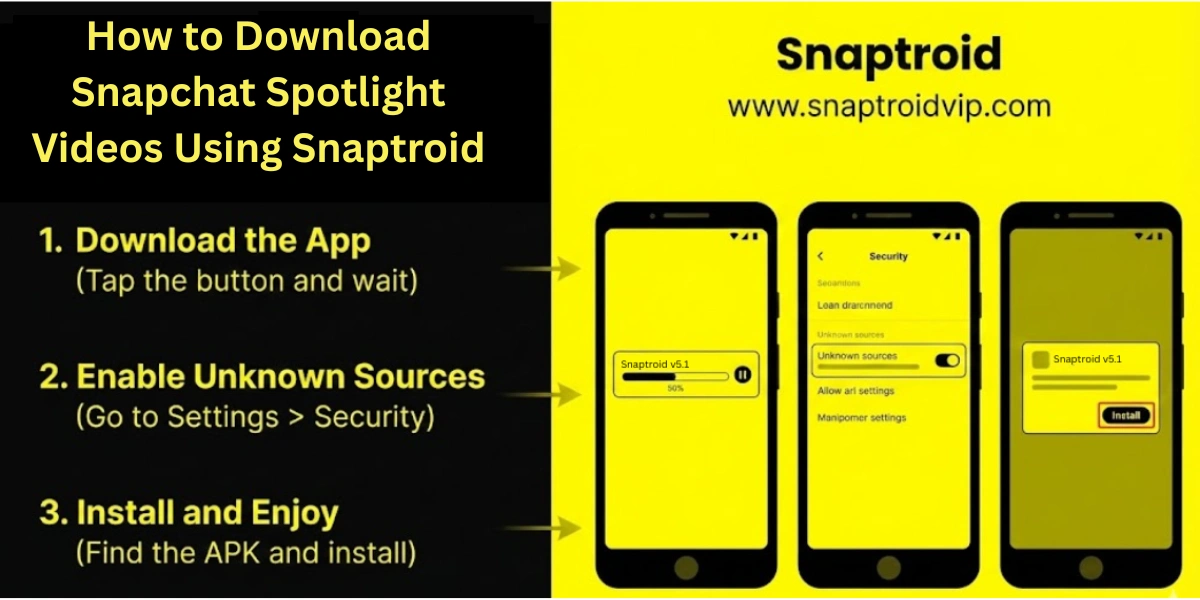
First, make sure you have the latest version of Snaptroid v5.1 installed on your phone You can download it on any device such as Pc or iOS.
- Open the app and log in with your Snapchat account.
- Tap the Spotlight icon at the bottom right of the screen to start scrolling.
Step 2: Find the Video You Want
Scroll through your feed just like normal until you find a video you want to keep.
- Tip: You don’t need to watch the whole thing first. You can download it immediately.
Step 3: Look for the Download Button
On the official app, you would have to click “Share” and hunt for a save option. On Snaptroid, we have made it easier.
- Look for the Download Icon located on the screen overlay or within the “three dots” menu options.
- Because Snaptroid unlocks premium features, this button is always active, even for videos that normally block downloads.
Step 4: Tap to Save
- Simply tap the Download button.
- You might see a small “Download Started” notification.
- In just a few seconds, the video will be saved directly to your phone’s internal storage.
Step 5: Check Your Gallery (or Vault)
Private Save: If you want to keep the video hidden, you can move it to the Snaptroid Vault inside the app so only you can access it with a PIN.
Standard Save: Go to your phone’s main Gallery or Photos app. You should see a new folder (often named “Snapchat” or “Snaptroid”) containing your video in full quality.

Platform Flexibility: iOS, Android, and PC
A common misconception is that modded features are only for mobile. However, Snaptroid caters to all major platforms to ensure everyone can enjoy these features in 2026.
- Android Users: Follow the standard APK installation instructions for v5.1.
- iPhone Users: If you are using Snaptroid for iOS, the process is exactly the same. The video will appear in your iPhone’s “Camera Roll” immediately after downloading.
- PC / Mac Users: You can run Snaptroid on your desktop using popular emulators like BlueStacks, NoxPlayer, or the Windows Subsystem for Android. This allows you to browse Spotlight on a large monitor and save videos directly to your computer’s hard drive, perfect for video editors and content archivists.
Troubleshooting Common Issues
Even with a robust tool like Snaptroid v5.1, you might occasionally run into hiccups. Here is how to resolve the most common downloading errors quickly.
Issue: “Download Failed” or Stuck at 0%
- Cause: This usually happens due to an unstable internet connection or a temporary server timeout.
- Fix: Toggle your Wi-Fi off and on, or switch to mobile data. If the issue persists, clear the app cache in Snaptroid Settings > Storage > Clear Cache.
Issue: Video Not Showing in Gallery
- Cause: The app may not have the necessary permissions to write to your device’s storage.
- Fix: Go to your phone’s Settings > Apps > Snaptroid > Permissions and ensure “Photos and Videos” or “Files and Media” is set to Allow. Alternatively, check the Snaptroid Vault inside the app; you may have accidentally enabled “Auto-Vault” mode.
Issue: Download Button Missing
- Fix: Long-press the video to bring up the secondary menu. The Snaptroid “Force Save” option will appear there as a backup method.
- Cause: In rare cases, a new Snapchat UI update may temporarily hide the overlay button.
Conclusion
If Snapchat Spotlight is full of great content, and you shouldn’t have to jump through hoops just to save your favorite clips. Whether you are building a collection of funny memes or just want to share a video with a friend who doesn’t have Snapchat, Snaptroid makes it effortless.
Forget about blurry screen recordings and blocked download buttons. With Snaptroid, you have the power to keep the content you love with just a single tap. If you are still worried about how to use it properly, you can read this guide on how to save snaps without notification.
Ready to start your collection? Download Snaptroid v5.1 now and save unlimited videos for free.